









Opening and closing every single email feels small until you do it 80 times a day. If you want to enable reading pane in Gmail, you are likely looking for a faster way to read and respond without wasting motion. The good news is that Gmail already has this feature built in. In this guide, you will learn how to turn it on, choose the best layout, and protect the emails that matter most.
Email is not just communication anymore. It carries contracts, medical updates, school approvals, invoices, and legal notices. Speed matters. But clarity and safety matter even more.
What Does Reading Pane Do in Gmail?
The reading pane allows you to preview and read an email without opening it in a new tab.
Imagine driving a car with a heads-up display. You can see directions without taking your eyes off the road. That is exactly what the reading pane does inside Gmail.
Instead of:
- Clicking an email
- Reading it
- Clicking back
You simply click once and read it on the same screen. It saves time and reduces distractions.
How to Enable Reading Pane in Gmail (Desktop Steps)
If you are wondering how to change reading pane in Gmail, follow these simple steps:
- Open Gmail in your browser.
- Click the gear icon in the top-right corner.
- Select “See all settings.”
- Go to the “Inbox” tab.
- Find the Reading Pane section.
- Choose:
- Right of inbox
- Below inbox
- Click “Save Changes.”
That is it. Gmail refreshes automatically with your new layout.
How to Change Reading Pane in Gmail for Better Workflow
Choosing the correct layout depends on your screen size and work style.
Right of Inbox
Best for large monitors. The email list stays on the left, and the message appears on the right.
This layout works well for professionals who compare multiple emails quickly.
Below Inbox
Best for smaller laptops.
The email list stays on top, and the email opens underneath.
It feels more natural on compact screens.
Think of it like adjusting your car seat. The car works either way, but comfort improves performance.
Who Benefits Most From the Reading Pane?
- Remote employees handling daily communication
- Teachers reviewing student submissions
- HR managers reviewing resumes
- Small business owners managing orders
- IT admins scanning system alerts
If you read more than 40–50 emails daily, this feature reduces unnecessary navigation.
The Overlooked Issue: Layout Is Not Protection
Enabling a reading pane improves speed. It does not secure your emails.
Many Gmail users assume their data is permanently safe because it is in the cloud. But accounts can get locked, compromised, or accidentally deleted.
Imagine planning a road trip with a perfectly tuned engine but no spare tire. Everything works until something unexpected happens.
Your inbox layout is comfort. Backup is protection.
What Happens If Gmail Access Is Lost?
Here are common situations
- Account suspension due to unusual login activity
- Phishing attacks
- Accidental deletion of important folders
- Company employee leaving without transferring emails\
When access is lost, productivity stops. That is why professionals often keep a local copy of important emails.
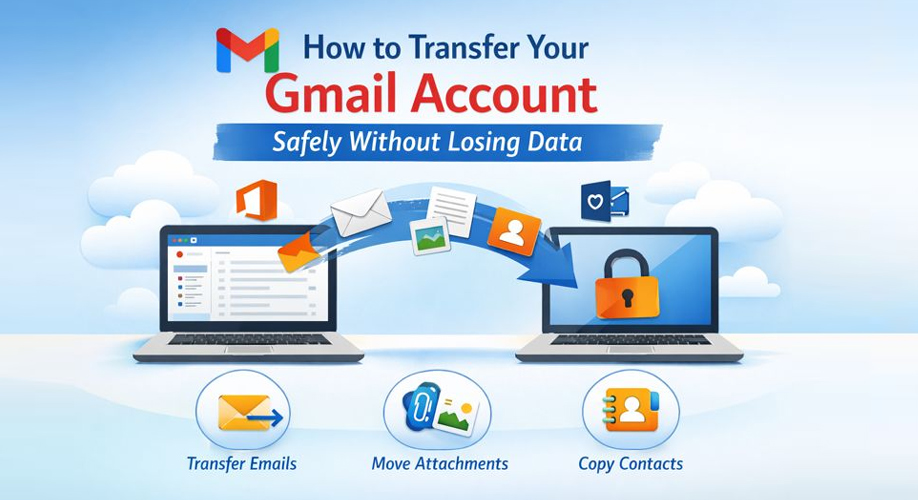
Simple Way to Protect Important Gmail Emails
If email is essential to your business or personal records, keeping a backup is a smart step.
A dedicated SysTools Gmail Backup wizard (Explore this tool on Microsoft Marketplace) allows users to download and store emails securely on their own computer. Instead of exporting everything in bulk, you can select specific folders and date ranges.
This makes recovery easier if something goes wrong.
It is similar to saving important photos from your phone to an external drive. You hope you never need it but you are glad it exists when you do.
Common Mistakes Gmail Users Make
- Believing that layout improvements equal security.
- Ignoring backup until a problem occurs.
- Not checking account recovery settings.
- Storing critical documents only in one place.
Avoiding these mistakes protects your workflow and your peace of mind.
Quick Recap
When you enable reading pane in Gmail, you reduce unnecessary clicks.
When you understand how to change reading pane in Gmail, you improve efficiency.
When you create a backup plan, you secure your communication.
Productivity and protection should go together.
Frequently Asked Questions
1. Can I use the reading pane on Gmail mobile app?
No, the reading pane feature is only available on the desktop version of Gmail.
2. Does changing the reading pane affect my stored emails?
No, it only changes how emails are displayed, not how they are stored.
3. Should I back up Gmail if I use it daily for work?
Yes, if email is critical to your job or business, keeping a backup reduces risk and ensures continuity.





Add Comment